
In the RE-OPS Marketplace, there are two methods for ordering products:
- Replenish Inventory: Use this method when placing routine 'replenishment' orders (the items you order regularly... air filters, light bulbs, etc.). For more information on placing an order to Replenish Inventory, check out our guide HERE.
- Order Products: Use this method to place 'on-demand' or ad-hoc orders (items you do not order regularly... light fixtures, ceiling fans, etc.).
NOTE: You can combine the above ordering methods in the same order, so don't over-think it!
To begin placing an order, tap the ‘+’ icon.
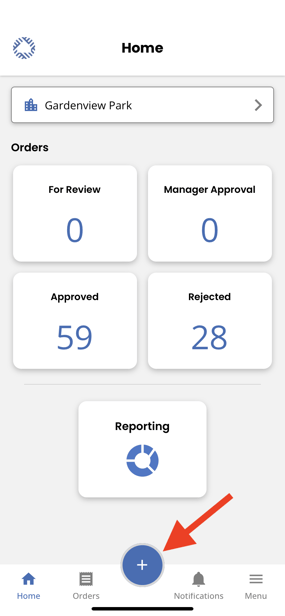
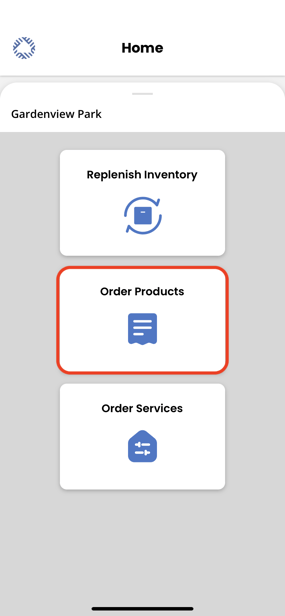
Each property team has a custom Property Catalog from which they order parts and supplies for their property. To place an on-demand order from your property's catalog, tap 'Order Products.'
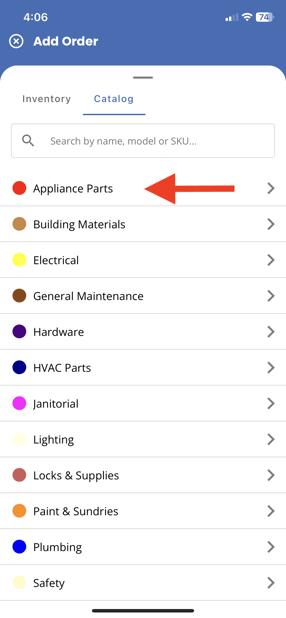
Next, if you prefer to search by category, tap the desired category.
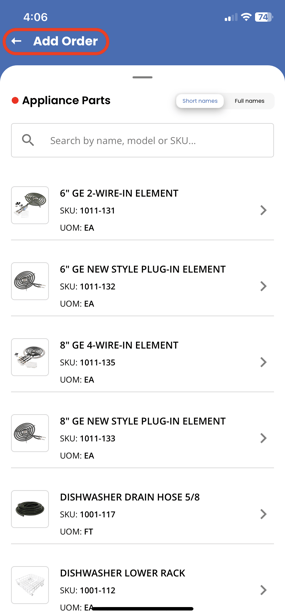
Scroll the list to find and select the product you need. Another way to find a product is to search for it. Tapping the back arrow, as shown below, will move us back to the Categories List where we can search the full property catalog.
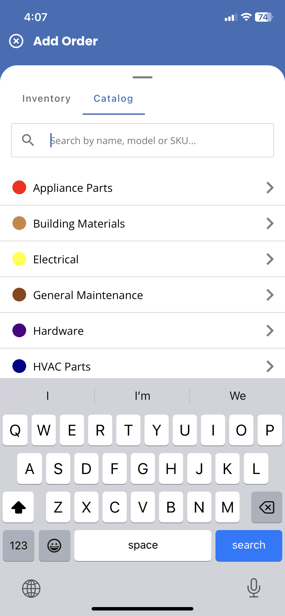
From the Categories List, use the search bar to search products by name, model or SKU. In this case, we are searching for a vanity fixture we use, so we searched by 'vanity.'
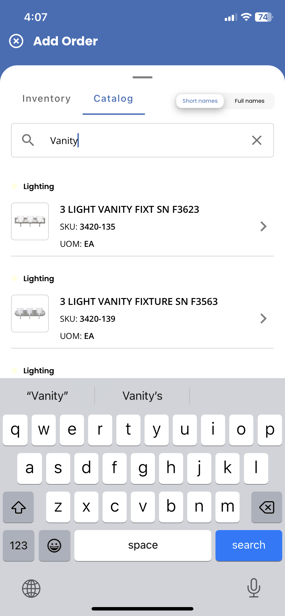
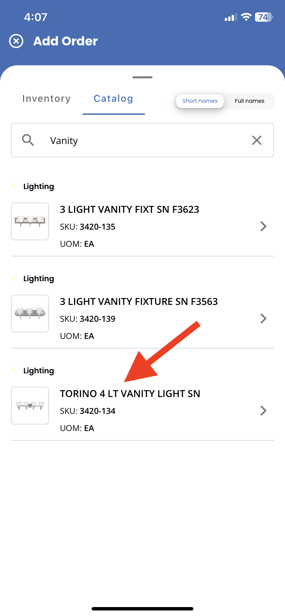
Once identified, we can now select the fixture we desire.
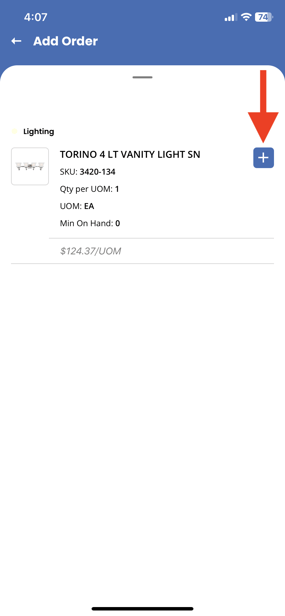
Once we have added the desired fixture, we can tap 'Add Order' in the top-left corner to continue building this order. If the fixture is the only item we would like to order, tapping 'Review Order' will immediately move us to the Order Summary screen.
When reviewing the order, we can change the item quantity, add additional items, and more. When satisfied that the order is complete, tap 'Send for Approval.'

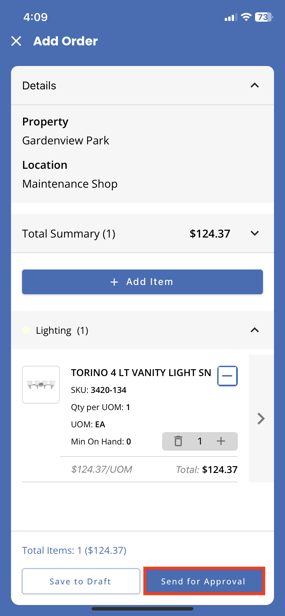
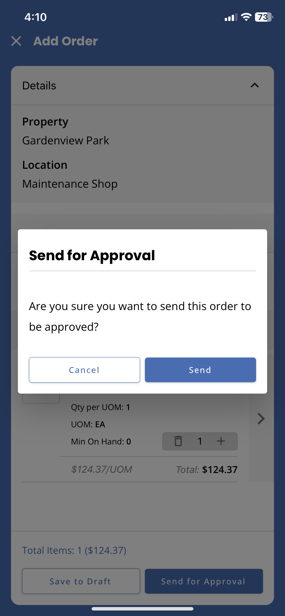
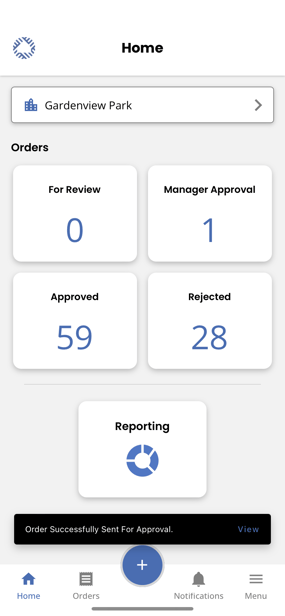
To confirm, tap 'Send' to route the order to the next person in the property's approval workflow. And with that, the order has been created and is now pending approval.
Should you have additional questions, please reach out to our Help Team at help@re-ops.co. We're here to help!