![re-ops-logo.png]](https://help.re-ops.io/hs-fs/hubfs/re-ops-logo.png?height=36&name=re-ops-logo.png)
Property management teams routinely order many of the same items (air filters, light bulbs, etc.) week after week. In RE-OPS, we refer to these routine items as the “Inventory,” and we streamline the ordering process to give time back to your team.
Each property team should set up and manage a customized Inventory for their property. For more information on setting up the Inventory for your property, refer to our *Inventory Set Up* guide. Once your property’s Inventory is set up, you are ready to place an inventory replenishment order.
To begin placing an order, tap the ‘+’ icon.

Tap Replenish Inventory to begin building the order.

Upon tapping ‘Replenish Inventory,’ you will see the custom list of items (Inventory) set up by your team to make ordering easier. As you determine that an item needs to be ordered, tap the ‘+’ icon to add it.

Once an item has been added, tap the ‘+’ icon shown below to increase the quantity to be ordered.


Continue to scroll down the list, adding additional items that need to be ordered.
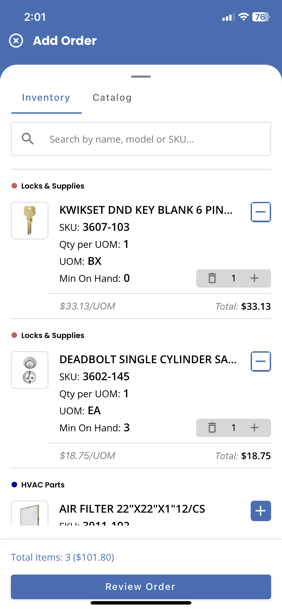
When you are satisfied that you have added all items which need to be ordered, tap Review Order.

When viewing the Order Summary, items will be grouped by their category. To expand a category, tap the chevron in the right margin.

Once expanded, additional changes can be made, if desired.


If needed, tap ‘Save to Draft’ to allow you to return and finish this order later. Otherwise, tap Send for Approval to finalize the order. This will route the order to your supervisor for review and approval.

In this example, the property manager just received a notification letting them know that a new order has been submitted and is pending their approval.

Should you have additional questions, please reach out to our Help Team at help@re-ops.co. We're here to help!